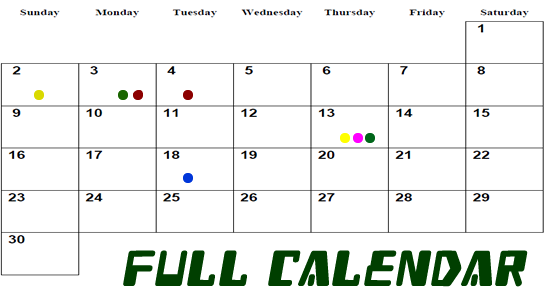
Here I am going to explain how to add color dots to highlight event in Full Calendar. Few months ago, I have used Full Calendar for scheduling daily events.
Full Calendar is a jQuery plugin for an open source and customizable javascript event calendar.
I have modified the jQuery code of Full Calendar plugin to add color dots which will highlight the event.
Let’s understand step by step and understand code:
First all, I have added the following code to use Full Calendar.
$('#calendar').fullCalendar({
    height: 550,
    contentHeight: 300,
    dayClick:function(selectedDate ){
             calcUpdate(selectedDate );
    },
    viewDisplay: function(view) {
    callBackBeforeShowMonth(view.visStart ,view.visEnd);
   }
});
It’s a script to display a full calendar. Here I have used callback viewDisplay which is triggered when a calendar rendered.So At the time of render, I have called one function callBackBeforeShowMonth.
Next is the callBackBeforeShowMonth function.Let’s understand the function.
function callBackBeforeShowMonth(startDate,endDate){
   var datesArray = getDates(startDate,endDate);
   var dataString = {
          action: 'color_dots_ajax_call',
          date: JSON.stringify(datesArray)
   };
   jQuery.ajax
      ({
          type: "POST",
          async: false,
          url: "",
          data: dataString,
          cache: false,
          dataType: 'json',
          success: function(response)
          {
              parsedata = jQuery.parseJSON(JSON.stringify(response));
              for (var j=0; j
');
}
}
});
}
In above code, I have passed parameters startDate and endDate and called ajax function and in that passed date as JSON. Above ajax code will check events in a database and add color dots into the date.
Now, I am going to explain PHP code used to fetch event from the database. Here I have written code in WordPress but you can write in core PHP or using any other framework.
function color_dots_ajax_call(){
global $wpdb;
global $current_user;
$dates= $_POST['date'];
$elements = explode(',', $dates);
$new_arr = array();
foreach($elements as $date){
$date = str_replace('\"',"",$date);
$exists_class = $wpdb->get_results("SELECT ID from ".$wpdb->prefix."calendar as c LEFT JOIN ".$wpdb->prefix."posts as p ON c.ID=p.ID WHERE DATE(c.eventDate) = '".$date."'");
if($exists_class){
foreach($exists_class as $class_exist){
$post_data['colorcode'] = get_post_meta( $class_exist->ID, 'colorcode', true );
$post_data['cal_day'] = date("d_m", strtotime($date));
array_push($new_arr, $post_data);
}
}
}
$new_arr = json_encode($new_arr);
die($new_arr);
}
add_action('wp_ajax_color_dots_ajax_call', 'color_dots_ajax_call');//Logged in users
function calcUpdate(selectedDate ){
selectedDate_new = $.datepicker.formatDate('yy-mm-dd', selectedDate);
var dateOffset = new Date(selectedDate_new);
cal_day = $.datepicker.formatDate('dd_mm', dateOffset);
$("table td").css('background-color', '');
$('#cal_'+cal_day).parent("table td").css('background-color', '#ededed');
var current = new Date($.datepicker.formatDate('dd-mm-yy', dateOffset));
$('#selected_date').val(cal_day);
var dataString = {action: 'display_class', date: selectedDate_new, firstDay :1};
jQuery.ajax({
type: "POST",
url: "",
data: dataString,
beforeSend: function () {
ShowProgress();
},
error: function(){
HideProgress();
},
success: function(response){
ShowProgress();
parsedata = jQuery.parseJSON(response);
jQuery('#class_details').html('');
if(parsedata==''){
jQuery('#class_details').append('No class has been scheduled for the selected date');
return;
}
jQuery('#class_details').append('');
for (var j=0; j= new Date().setHours(0, 0, 0, 0)){
jQuery('#class_details').append(''+title+'
'+title_type+' | '+title_level+' | '+nMaxSlot+'
'+sVenue+'
'+dClassFromDate+' - '+dClassToDate+'
'+title+'
'+title_type+' | '+title_level+' | '+nMaxSlot+'
'+sVenue+'
'+dClassFromDate+' - '+dClassToDate+'
That’s it. You can see color dots in frontend in your scheduler.
Must Read:
To Call Remote URL in $.ajax method in jQuery
How to use Ajax in WordPress with example
Hope this article helps someone.As always, thanks for reading. Don’t Forget to Follow us on Twitter or Subscribe us to Get the Latest Updates.

?>/images/animatio.gif)








Comments (3)